
Dialpad - User Spam Blocking
Custom spam blocking
Users can also set individual parameters regarding spam calls and SMS/MMS messages to their Dialpad account.
To configure your spam settings, go to Your Settings.
Select Call Handling & Voicemail
Navigate to Call Blocking & Spam Prevention
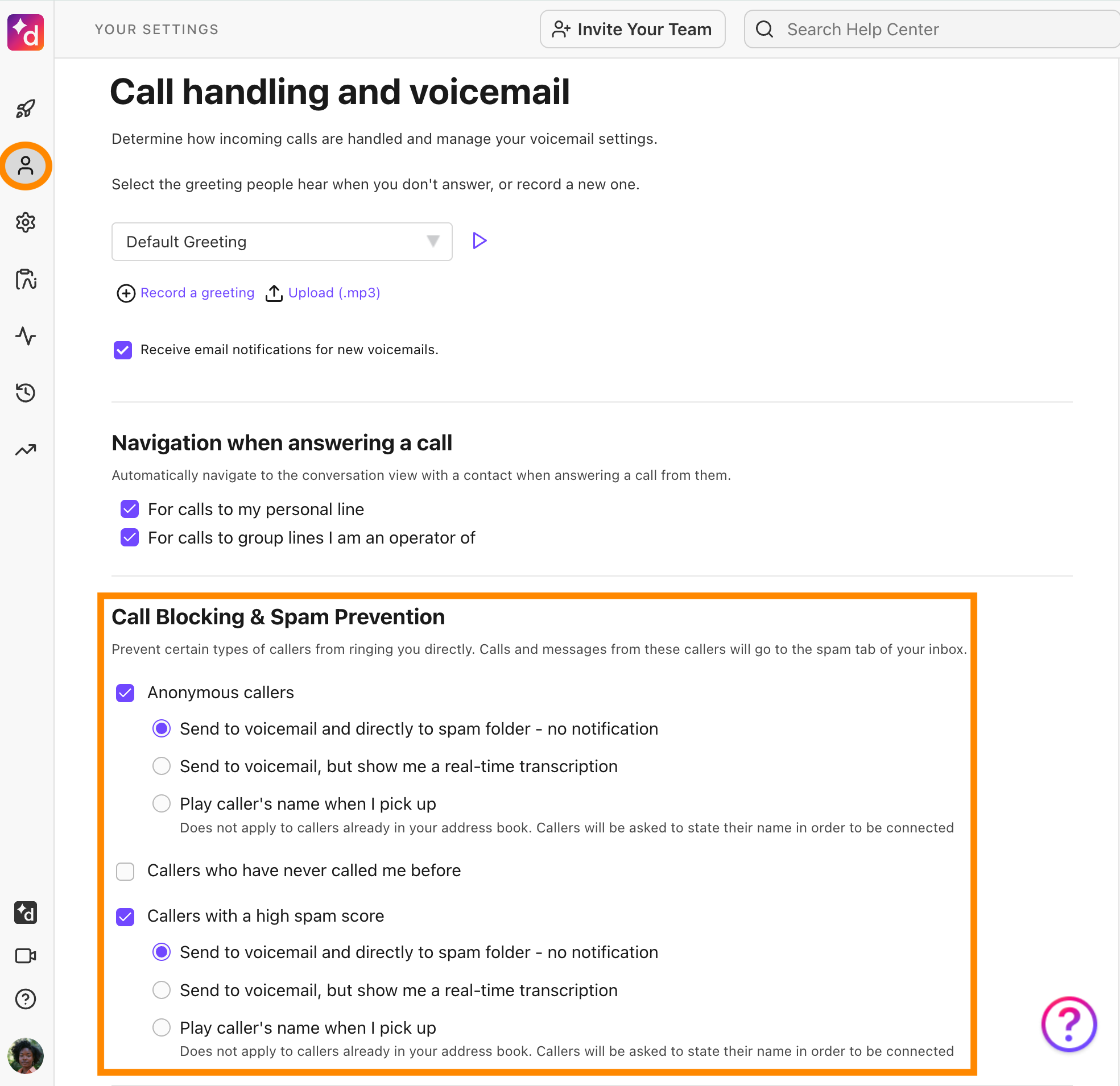
Choose whether or not to prevent calls and messages from anonymous phone numbers, phone numbers already not in your Contacts list, and phone numbers with a high spam score.
If you opt-in to prevent any of these calls or messages, you'll see these options:
Send to voicemail and directly to the Spam folder — no notification
Calls and messages will not ring your devices; missed calls, messages, and voicemails will be sent to the spam folder in your inbox automatically.
Send to voicemail, but show me a real-time transcription.
Calls and messages will not ring your devices; if the caller leaves a voicemail, you'll see the transcript of the message.
Play caller's name when I pick up
- Callers will be asked to state their names in order to be connected.
- Callers hear an IVR that says, 'Hello, please state your name after the tone, and Dialpad will try to connect your call' before ringing your devices.
- Upon picking up, you'll hear, 'Hello, [name] is trying to reach you via Dialpad; press 1 to accept this call'.
Note
This doesn’t apply to callers already in your address book.
Note
Blocked SMS messages will not receive a notification that their message was blocked regardless of the settings (above).
Any changes will immediately take effect in the Dialpad app.