
Dialpad - Check Your In-App Audio Settings
Check Your In-App Audio Settings
In-app audio settings let you decide the microphone and speaker/headset Dialpad uses.
Built-in options are often included with laptops or desktops, but Dialpad also supports external microphones and speakers/headsets. So you're able to choose what works best for you. It takes only a few clicks, and then Dialpad knows your preferences for all calls and messages.
Let's take a look at audio settings in Dialpad's desktop app.
Hardware settings
To access your Hardware Settings from the Dialpad app, select the Gear icon.
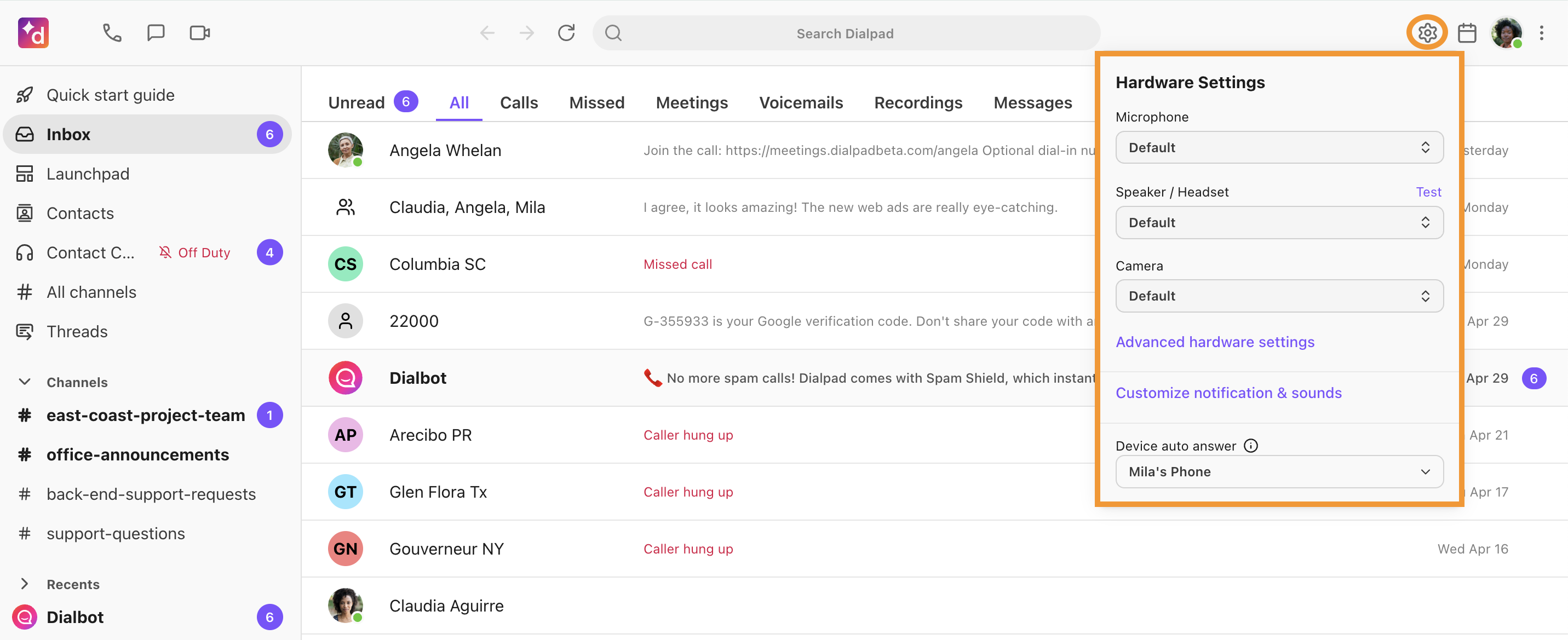
This pop-up menu provides quick access to your microphone, speaker/headset, camera configuration and desk phone settings.
You can also access your Hardware Settings from your app settings.
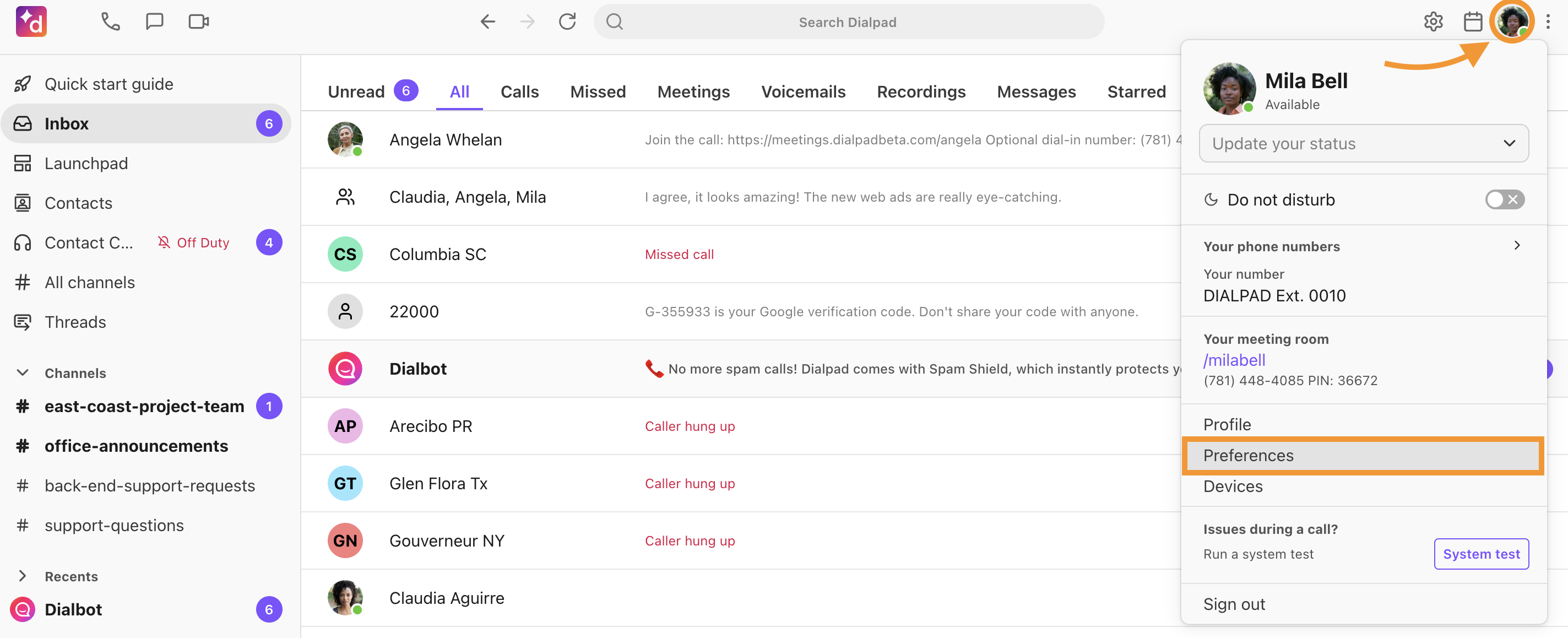
Select your avatar
Select Preferences
Select Hardware Settings
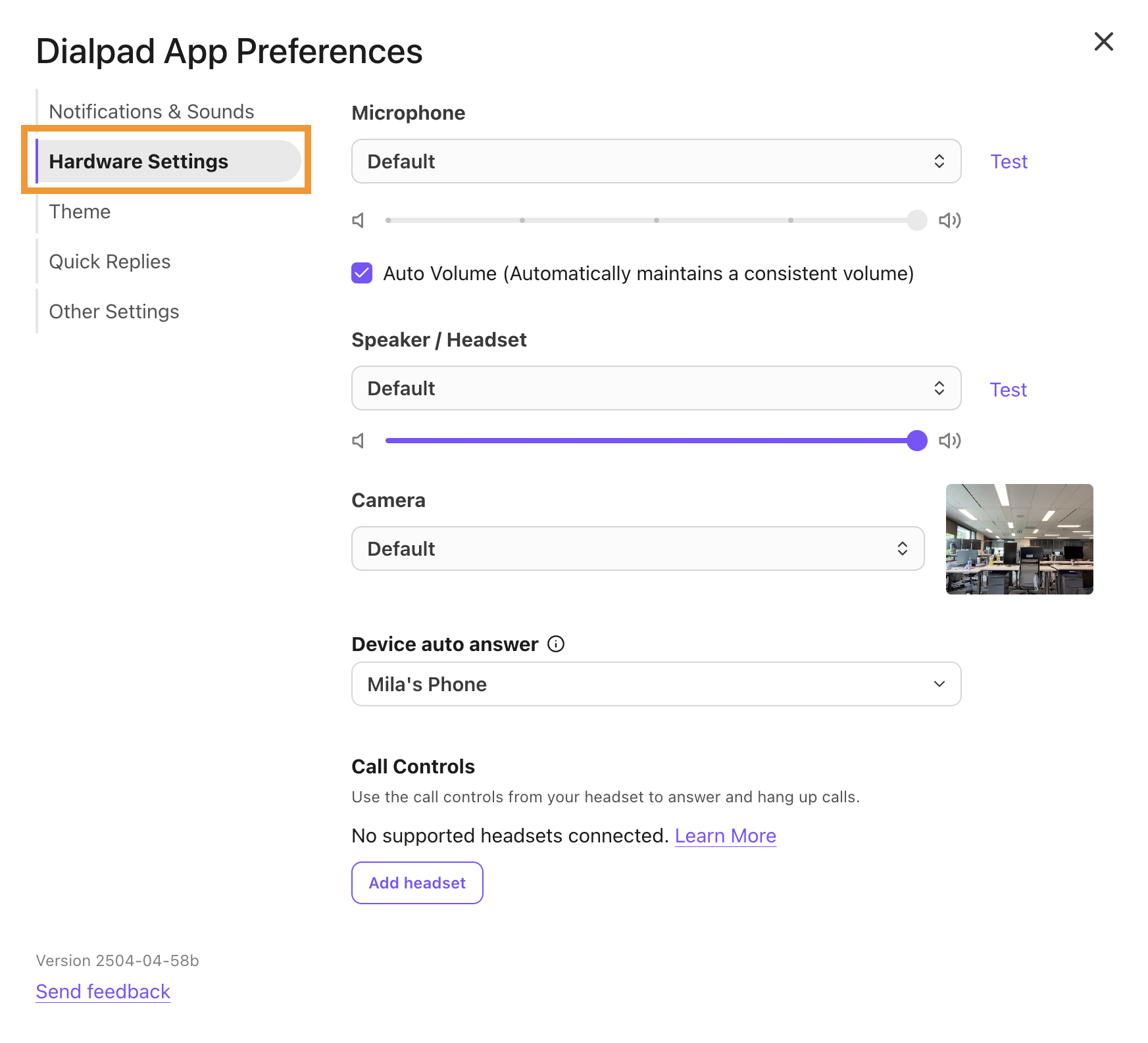
Here you'll find the same list of microphone, speaker/headset, camera options and deskphone.
Make any adjustments necessary, then continue using Dialpad.
Volume control
Customize your notification and microphone volume, or choose to use Dialpad’s Auto Volume feature to maintain a consistent volume throughout your devices.
Volume control settings can be accessed from your Hardware Settings menu, as detailed in the section above, or from the Preferences section of your in-app setting.
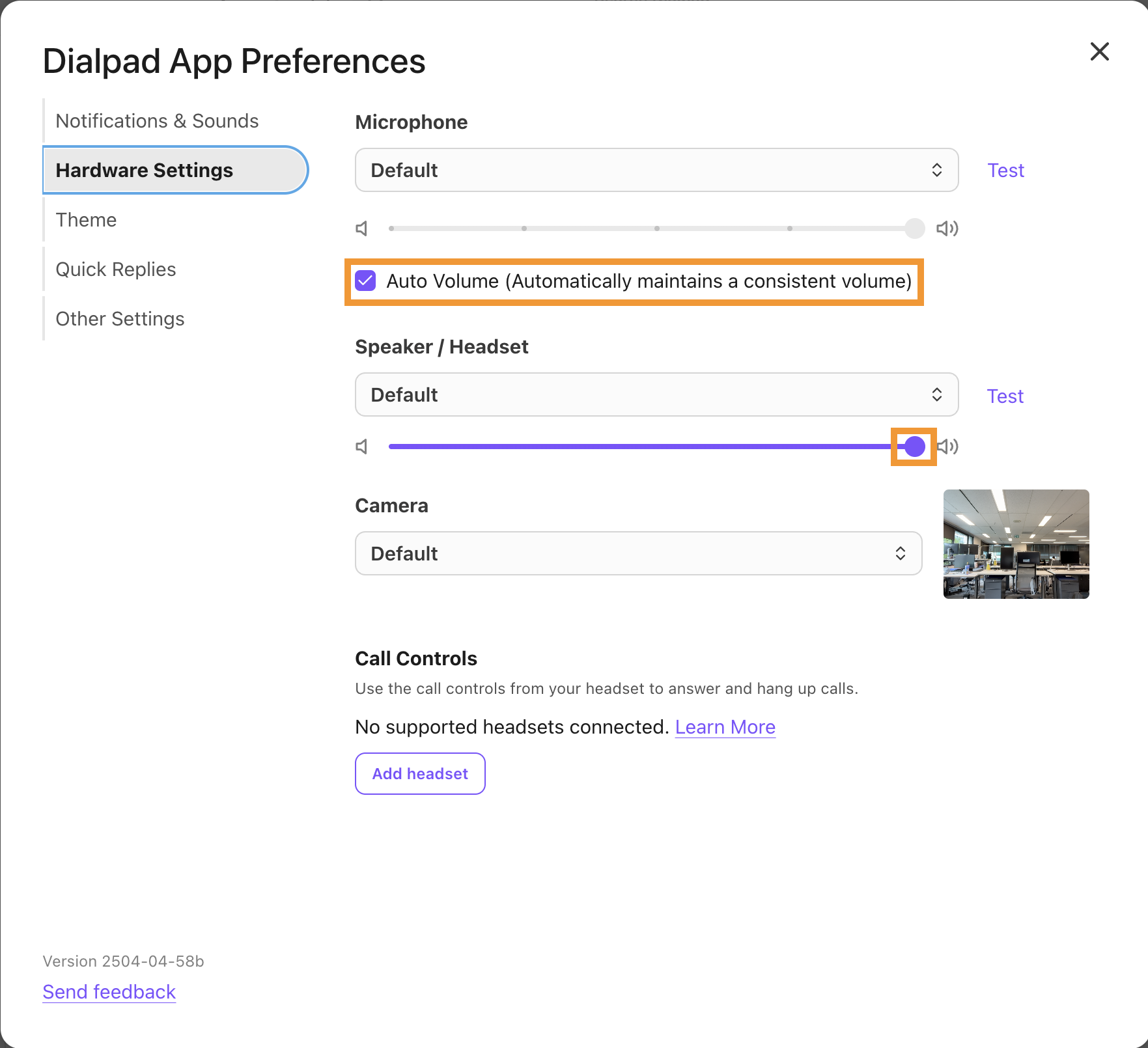
To adjust the volume, slide the toggle to the right or left, then select Test to listen to the volume.
You can also choose Auto Volume to have Dialpad automatically maintain a consistent volume.
That’s it, your preferences are instantly saved!