
Dialpad - Sending Individual Messages From Shared Lines
Granular notifications for shared lines
Granular notifications allow you to choose, per shared line, whether to receive Messages and Voicemail alerts for your Office mainline, Departments, and Contact Centers.
Note
To display granular notifications for both your desktop app and mobile app, you will need to set them up separately in the corresponding settings for each app.
To choose which shared lines you receive notifications from, go to your Dialpad App.
Select your avatar, and select Preferences
.png)
Tip
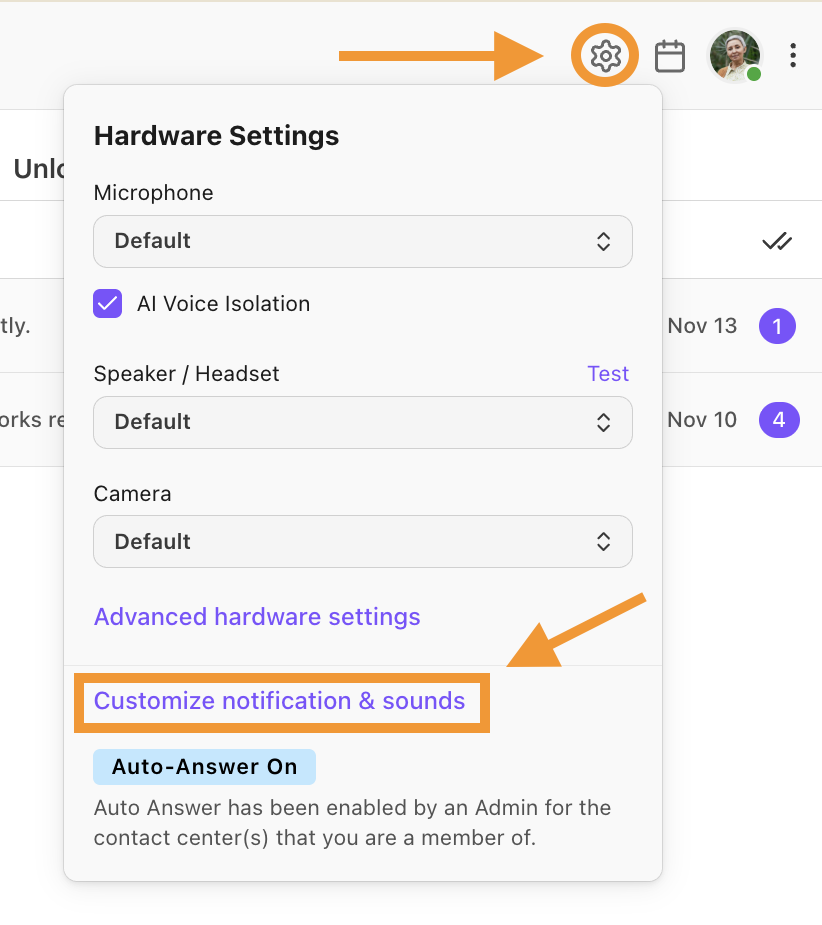
Alternatively, you can select the Gear icon and then select Customize notifications & sounds.
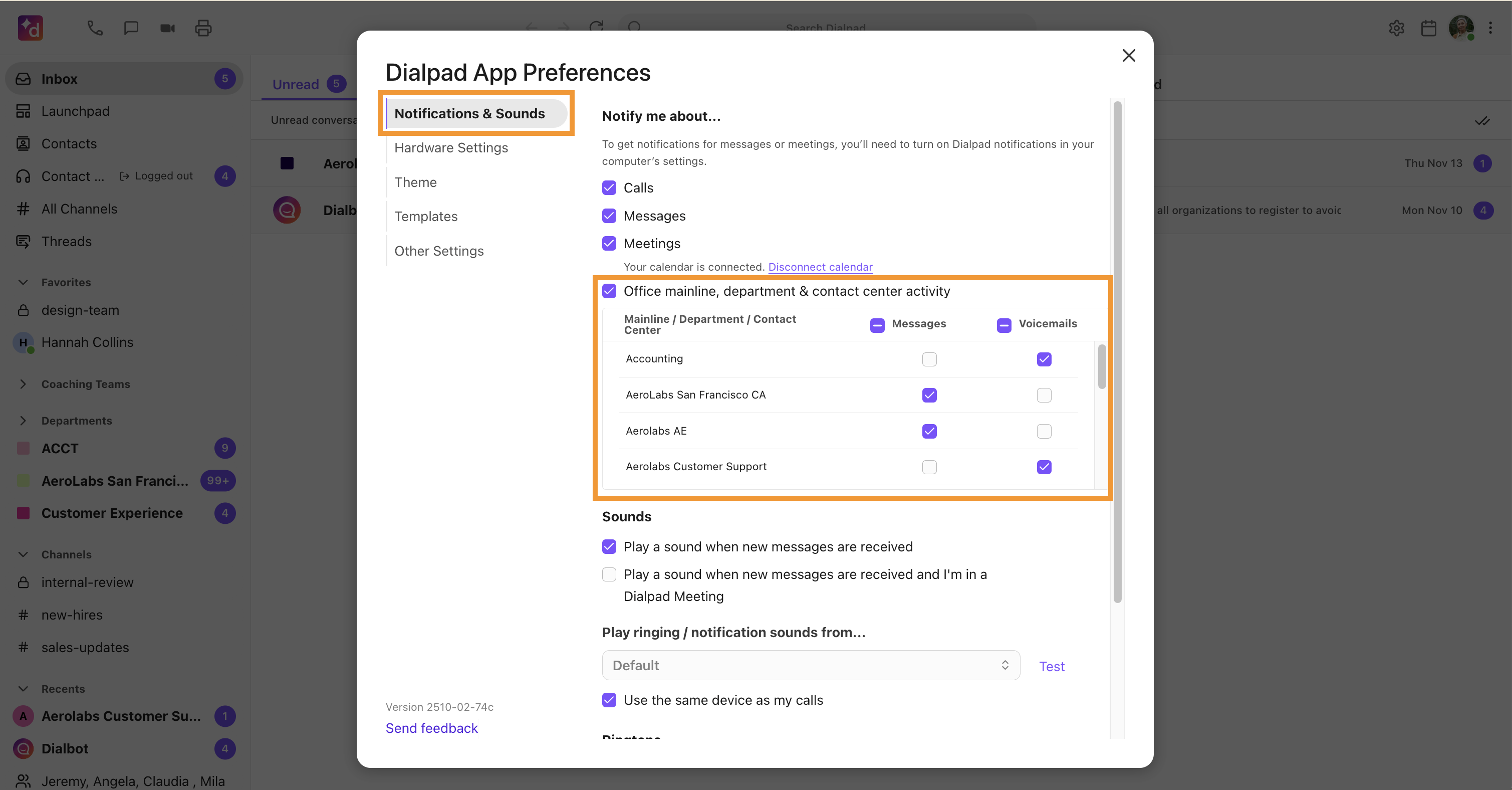
Select Notifications & Sounds
Select the Office mainline, department & contact center activity option
Select the shared lines you want to receive messages and/or voicemails
Note
Granular notification settings for shared lines are set per user and follow Do Not Disturb and Business Hours settings.